The slow performance issue is one of the most common problems on Android devices, especially after months or years of use. Apps that take too long to open, stuttered animations, typing delays, and even unexpected restarts are clear signs that the system needs a deep cleaning and optimization.
But before considering a full reset or replacing the phone, there are very effective —and completely safe— steps that can significantly improve your device’s speed, free up resources, and reduce accumulated system errors.
This complete guide includes a series of actions recommended by technical support specialists, valid for any modern Android phone: Motorola, Samsung, Xiaomi, Asus, Oppo, Realme, TCL, and more. We gathered everything you need to perform a full maintenance routine: from clearing the hidden system cache to cleaning app cache, optimizing internal processes, and freeing up critical space.
Why Android Phones Become Slower Over Time
As we use a smartphone, Android stores temporary data to speed up apps and services. Over time, this accumulation leads to:
- Cache fragmentation
- Internal conflicts
- Corrupted temporary files
- Storage saturation
- Excessive background processes
All of this directly affects the device’s speed, even on relatively recent models.
The good news is that most of these issues can be fixed without deleting personal data or reinstalling the operating system. They only require proper technical cleaning in the right places.
1. Clear the System Cache (Wipe Cache Partition)
The deepest and safest optimization for any Android
This step is the most powerful one in the entire guide. “Wipe Cache Partition” cleans the hidden system cache: accumulated files from old updates, leftover app data, temporary configurations, and logs that are no longer used but still consume resources.
Main benefits:
- Noticeable improvement in overall speed
- Smoother animations
- Reduction of errors and forced closes
- Better RAM management
- Less overheating
- Increased stability in demanding apps
Important:
✔ Does not delete photos, videos, or personal files.
✔ Does not remove settings or accounts.
✔ Does not affect installed apps.
✔ This process is recommended by manufacturers.
How to Do a Wipe Cache Partition on Android
The steps may vary slightly depending on the brand, but on most Android devices it works like this:
Step 1: Turn off the device
Turn it off completely.
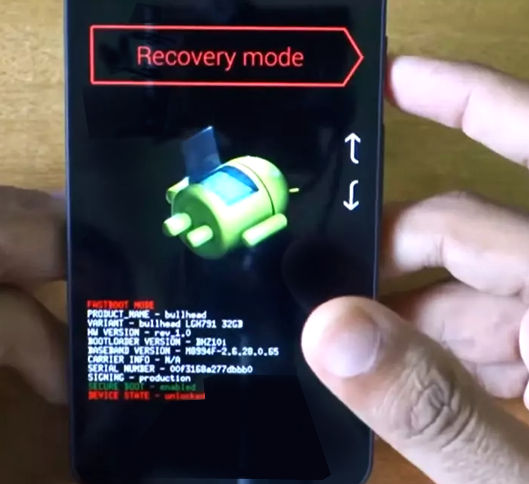
Step 2: Enter Bootloader / Fastboot Mode
On most phones:
- Hold Volume Down + Power
until a technical menu appears.
On Samsung:
- Hold Volume Up + Power, or
- Use a USB cable connected to a PC + volume key combinations.
(If your model is Samsung, you can add a note: many Samsung devices require a USB connection to enter Recovery.)
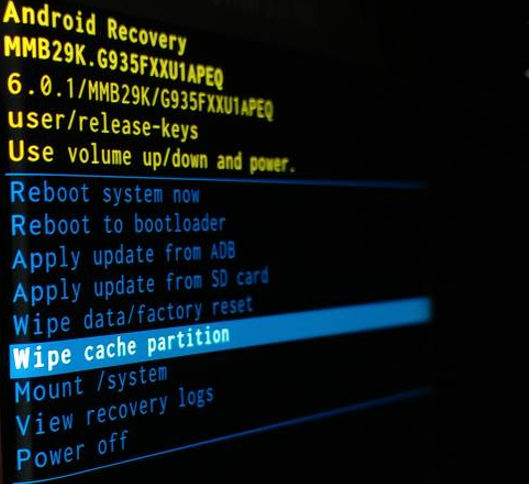
Step 3: Select “Recovery Mode”
Use the volume keys to navigate.
Confirm with the power button.
Step 4: Enter the Recovery Menu
Some devices show a fallen Android logo.
In that case press:
- Power + Volume Up (short press)
Step 5: Find “Wipe cache partition”
Navigate with Volume, select with Power.
Step 6: Confirm with “Yes”
The process takes 3 to 20 seconds.
Step 7: Select “Reboot system now”
The phone restarts with a clean system cache.
2. Clear Cache from Heavy Applications
Aside from the system, apps generate large amounts of temporary data: images, thumbnails, downloaded files, old sessions, messages, and more.
The apps that consume the most cache are:
- TikTok
- Chrome
- YouTube
- Snapchat
- WhatsApp (internal thumbnails, not chats)
How to clear an app’s cache on Android:
- Open Settings
- Go to Apps
- Select an app
- Enter Storage
- Tap Clear cache
This does not delete data, accounts, or conversations. It only removes temporary files.

How often to do it
Depending on usage:
- Heavy users: once a week
- Regular users: every 10–15 days
- Occasional users: once a month
3. Free Up Storage Space (critical for speed)
Android starts to behave poorly when internal storage reaches 85% or more. It’s a simple technical rule: the fuller the storage, the slower the phone.
How to check your available space
Settings → Storage
If you’re near the limit, focus on these actions:
Delete duplicated files
Many modern Android devices include smart cleaning tools.
Back up photos and videos
The most recommended options:
- Google Photos
- OneDrive
- Manual backup to a computer
- An external drive using OTG
Uninstall unused apps
Especially old games or duplicate social apps (e.g., Facebook + Facebook Lite).
Empty the image trash folder
In Google Photos and the native gallery, deleted photos remain in the trash for 30 days.
4. Optimize Power Management and Background Processes
Many Android phones include optimization tools hidden inside battery or device menus.
Look for these options on your device:
- Device optimization
- Battery manager
- Smart cleaning
- Close background apps
- Adaptive settings
Activating or running these tools periodically improves:
- System speed
- Battery life
- Lower overall temperature
- Fewer “frozen” apps
5. Update the Operating System and Apps
An update not only adds features: it fixes internal errors, improves security, and enhances hardware compatibility.
What should you update?
- Android (if available)
- Critical apps: Google Play Services, Chrome, WebView
- All apps from the Play Store
Never postpone important updates
Many times a slow phone is simply due to outdated internal systems.
6. Check Your SD Card (if you use one)
A damaged or very slow microSD card can:
- Slow down the camera
- Make the gallery take longer to load
- Affect apps installed on the SD
- Cause forced closes
If you notice issues:
- Remove the SD and restart
- Back up and format the card
- Consider replacing it with a Class 10 or higher card
7. Scheduled Restarts (simple and effective maintenance)
Restarting the phone every 2 or 3 days eliminates stuck processes, frees RAM, and clears automatic temporary files. All manufacturers recommend it.
Some devices allow automatic restarts at specific times.
8. When Cleaning Is Not Enough: Other Alternatives
If even after clearing caches, freeing space, and optimizing the system the phone is still slow, there are other options:
Safe Mode
Helps detect whether an app is causing the problem.
Reset settings
Does not delete personal files but resets system configurations.
Factory Reset
Last resort. Leaves the phone like new.
Important:
Always back up your device before doing a full reset.
Can’t find these options on your device?
Depending on the model and Android version, some features may appear under different names or may not be available at all. In some devices, the system performs automated maintenance tasks, so the recovery menu may look more limited.
If you cannot find the option you’re looking for, you can safely try these alternatives:
- Restart the device manually to trigger internal system cleaning.
- Clear each app’s cache from Settings → Apps.
- Free up space by removing temporary files, duplicates, or unused apps.
- Check for available system or app updates.
These actions often provide similar or even better results than advanced recovery menu options. Each device manages performance differently, so these alternative steps help optimize operation safely.
Proper maintenance extends your Android’s lifespan
An Android phone doesn’t become slow for no reason. Most of the time it just needs proper cache cleaning, system optimization, and storage review. By following this guide, any user can recover lost performance without needing a technician or deleting personal data.
Implementing periodic maintenance (clearing app cache, freeing space, performing Wipe Cache Partition, and restarting frequently) ensures a faster, more stable device with better battery life.
If you manage multiple devices or provide support to clients, this guide can also serve as a standard preventive maintenance procedure for Android.